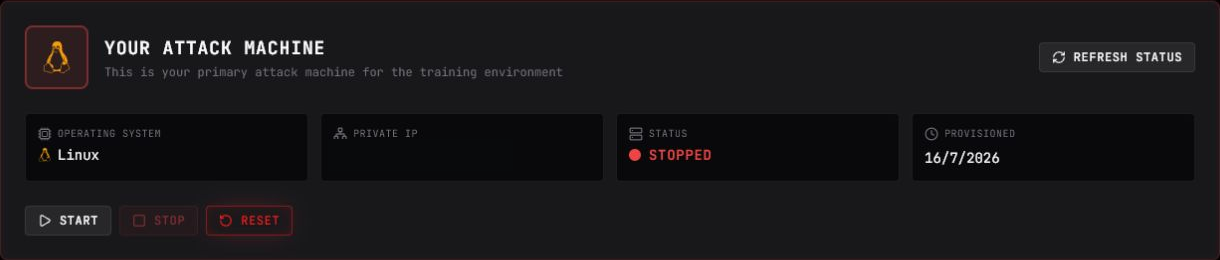
Start and stop your environment
Start SpartanOps when you need to work and stop it when you finish. Stopping the environment preserves saved files for your next session.
The panel uses three main states:
- Stopped: you can start the machine; the console is unavailable.
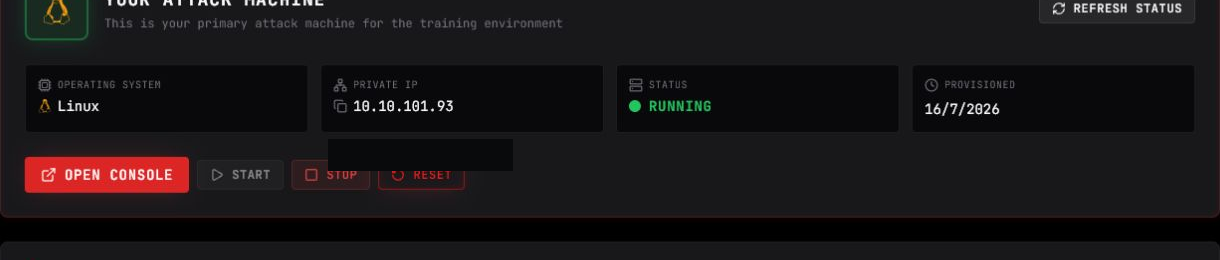
- Running: you can open the console or stop the machine.
- Resetting: the platform restores the image and temporarily disables the controls.
- Open SpartanOps inside the course.
- Select Start.
- Confirm the action.
- Select Refresh status until Running appears.
- Select Open console.
If the platform displays a waiting period, follow the time shown before trying again.
Open the remote desktop
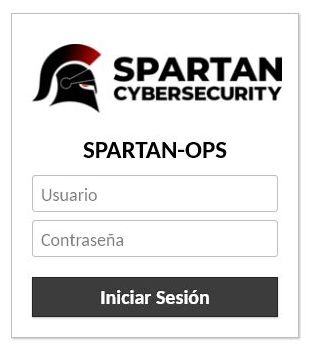
Section titled “Open the remote desktop”When SpartanOps shows Running, Open console opens the remote environment’s authentication portal. Do not use the email address or password for your Spartan-Labs account.
- Under Credentials, copy the machine’s User and Pass values.
- Select Open console.
- In the SPARTAN-OPS portal, paste the values into Usuario and Contraseña.
- Select Iniciar Sesión.
- Wait for the attack machine’s remote desktop to load.

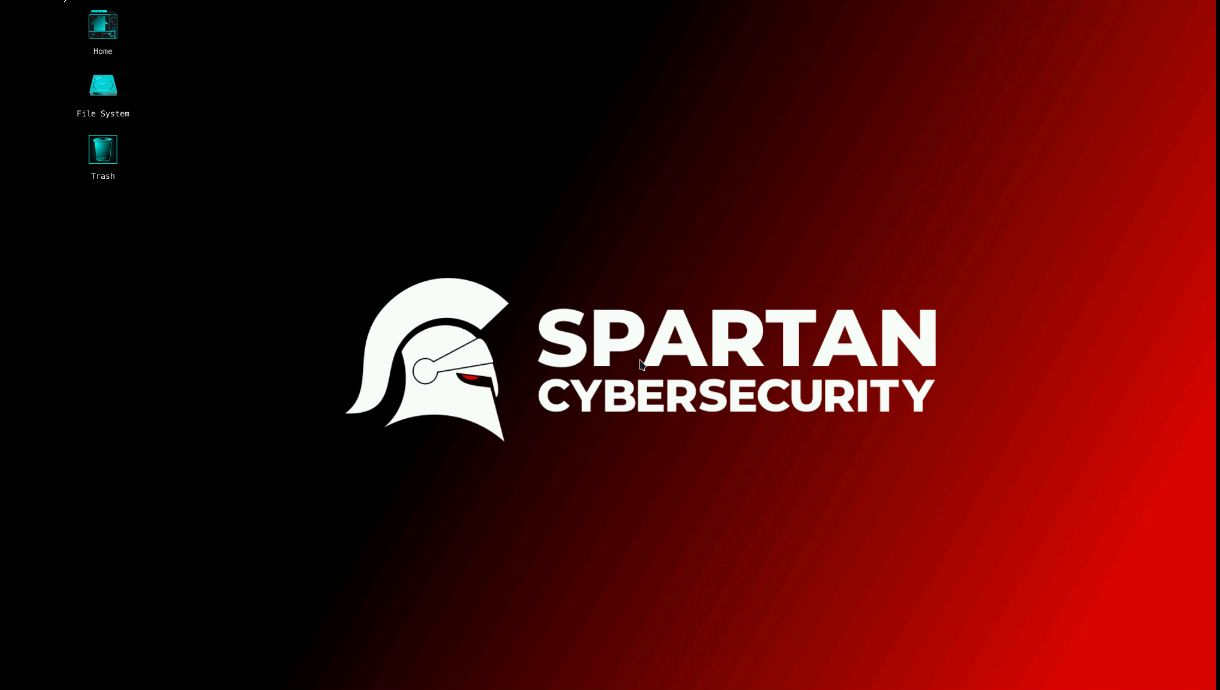
After successful authentication, the browser displays the remote desktop. Work inside this session as you would on a Linux desktop and save your files before stopping SpartanOps.
- Save your work and finish any processes writing files.
- Return to the SpartanOps panel.
- Select Stop and wait for confirmation.
The platform may also stop inactive environments. Do not rely on an open session to preserve unsaved work.